

MICROSOFT 365 FOR HOME
Achieve the extraordinary
Unlock new capabilities, build your skills, and uncover worlds of possibility with Copilot1 in Microsoft 365.
How it works
Your routine just got an upgrade
- Reimagine what’s possible with AI-powered features1 in Microsoft 365. Edit photos and videos like a pro, turn simple ideas into stunning designs, and overcome writer’s block with confidence and ease.
- Safeguard your photos, documents, phones, tablets, and computers with security tools and features designed to help keep your digital life secure.
- Elevate your expectations with AI-powered features1 in Microsoft 365. Get started seamlessly, focus on tasks, and stay on track with apps and cloud storage across your devices.



Featured news
Discover what’s happening with Microsoft 365

Copilot
Microsoft 365 Personal and Family now includes AI
The Microsoft 365 you know and love is better than ever before, with new AI-powered features.1

Designer
Unleash your creativity with Microsoft Designer
Powered by AI, the Designer app is now generally available.

Copilot
Copilot
Copilot, your AI companion, is ready to support you whenever and wherever you need it.

Copilot
Get priority access
Enjoy priority access during peak times, get higher usage limits, and use Copilot in your favorite apps, like Word, Excel, PowerPoint, and Outlook.

What’s included
Redefine what’s possible with Microsoft 365

Apps to manage your everyday
Get the apps, security, and cloud storage you need to accomplish your goals.

Word
Elevate your writing and create beautiful documents—anywhere, anytime.

Designer
Create, design, and edit anything you can imagine in seconds with AI.2

Outlook
Manage your email, calendar, tasks, and contacts in one location.

Microsoft 365 Copilot app
Find your apps and tools in one place with access to AI-powered features.

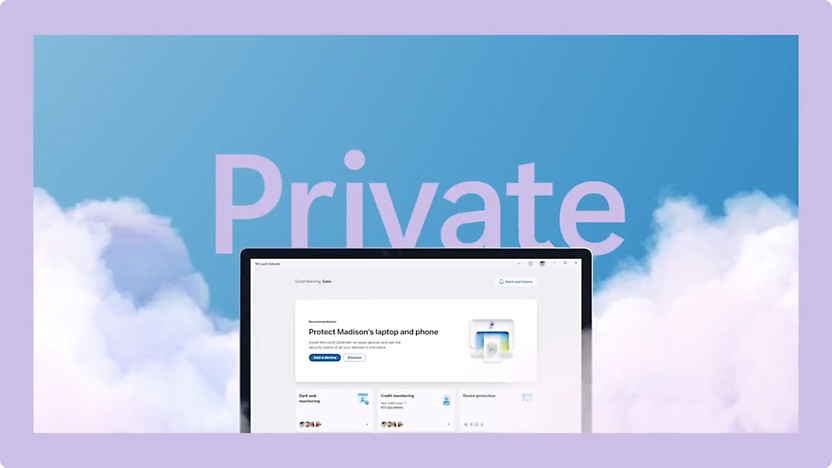
Microsoft Defender
Safeguard your personal data and devices with an easy-to-use app. Requires a Microsoft 365 Personal or Family plan.

OneDrive
Save and share your files and photos, wherever you go.

Apps to elevate your everyday
Get the apps, security, and cloud storage you need to accomplish your goals.

PowerPoint
Turn your inspiration into stunning presentations.

Microsoft Editor
Elevate your writing with real-time, intelligent writing assistance.

Clipchamp
Create beautiful videos with ease.

OneNote
Store all of your ideas in one place.

Excel
Turn data into insights and simplify complex data into easy-to-read spreadsheets.

Microsoft Teams
Not just for work or school—connect and collaborate with anyone, anytime.
Explore Microsoft 365
Innovate with Microsoft 365
Discover what’s possible and turn ideas into reality anytime, anywhere.




Plans
Find the plan that’s right for you
Subscription continues to be charged at the regular price and selected term, unless canceled in Microsoft account.
Customers stories
See how customers accomplish more with Microsoft 365











Get started
Choose your plan
Create, share, and collaborate with your favorite apps—all in one place.
- App availability varies by device/language. Features vary by platform. Minimum age limits may apply to use of AI features. Details.
- [1]Microsoft 365 Personal or Family subscription required; AI features only available to subscription owner and cannot be shared; usage limits apply. Learn more.
- [2]AI usage limits apply; AI features only available to subscription owner and cannot be shared. Learn more.
- [3]Copilot in Excel requires AutoSave to be enabled, meaning the file must be saved to OneDrive; it doesn't function with unsaved files.
- [4]Copilot features in Outlook apply to accounts with @outlook.com, @hotmail.com, @live.com, or @msn.com email addresses and are available in Outlook.com, Outlook built into Windows, Outlook on Mac, and iOS and Android apps.
- [5]Identity theft monitoring is only available in the United States and US territories.
Follow Microsoft 365