
Create designs
that inspire
that inspire
Productivity
Social media
Print
Generate stunning AI-powered visuals


A girl rides a skateboard while walking her dog. The girl is wearing a purple sweatshirt, baggy jeans and boots. She has expressive, round brown eyes and a look of determination. The background is an out of focus park and the girl is in a 3d illustrated animation style.

A watercolor hummingbird, centered, in red and yellow with a soft cream, watercolor background.

A banana with sunglasses surfing a blue wave.

Front-facing view of a mountain with floral decorative elements, papercraft quilling style, in pastel pink, blue and purple colors.

An abstract background of melting liquid with a metallic sheen, dark purple and gold colors with reflective studio light.

Illustration of a man playing a decorated steel pan drum.

A macro, detailed portrait of the face of a Dalmatian dog staring straight ahead with bright blue eyes on a solid pastel blue, out of focus background. The portrait is realistic with studio lighting.

A yellow sun with orange rays rises over white and purple clouds in a pop art style. There should be a halftone effect and screen printing aesthetic. The orange rays radiate outward and fill the background.

A group of assorted donuts in a pink bakery box.

A portrait of a man in a digital collage style. The man is wearing thick red glasses with circular patterns in blue and orange on the inside of the frames. The man is in a red polka dot shirt with a background of thick, brightly colored lines in pink, blue, and red. Collaged into the background is a ferris wheel and a circus tent.

A profile view of a caterpillar crawling on a moss-covered rock with the lush, green forest in the background, macro view, detail, close-up.

Cartoon style woman with a blue hat, fishing on a river near a forest.

A colorful street scene in the style of Mexican mural art. The street has adobe-colored shops on both sides with striped awnings. There is a fountain in the center and trees and mountains in the distance.

A single pink ranunculus in the style of a vintage botanical drawing.

A unicorn stands on a wooden pier looking out over clouds below, with a starry night sky above.
Create and edit in an instant with Microsoft Designer













How it works

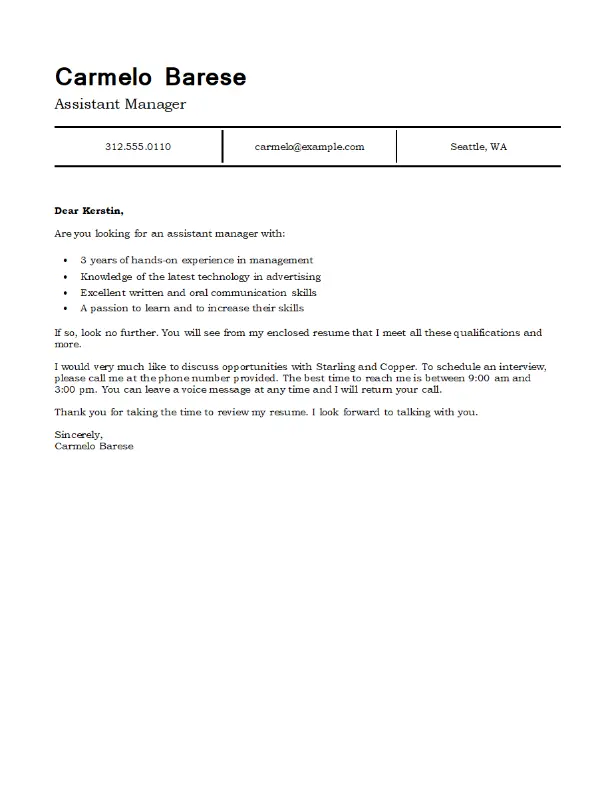
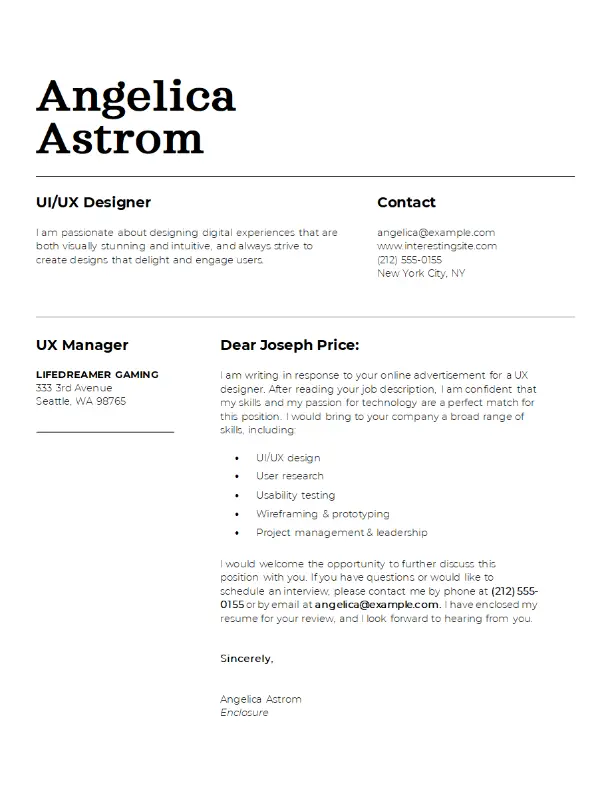
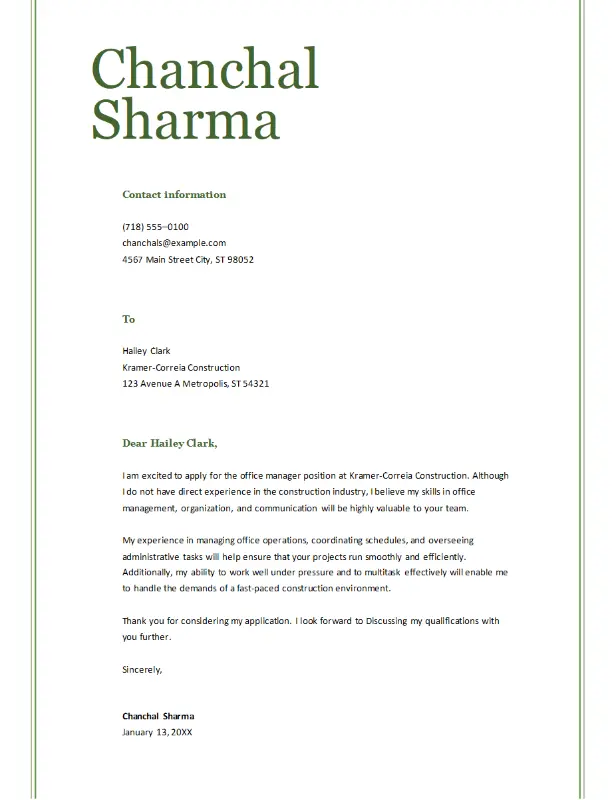
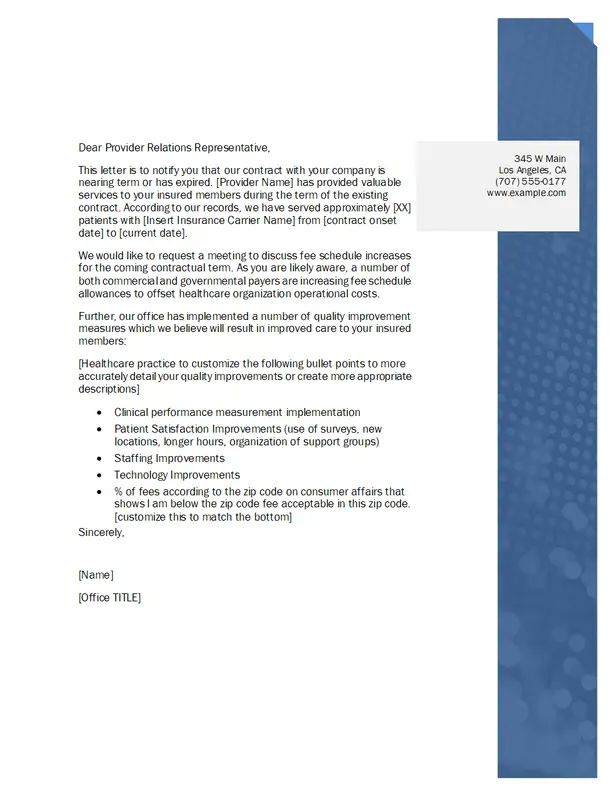
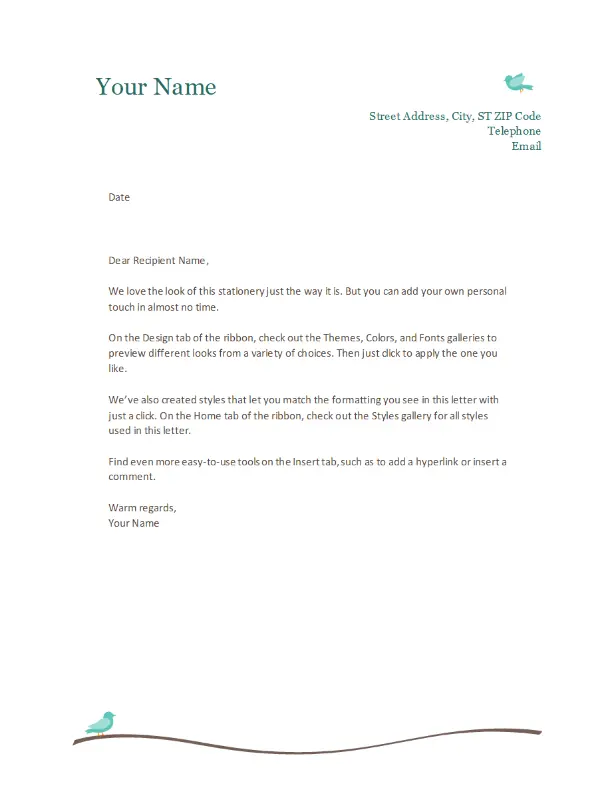
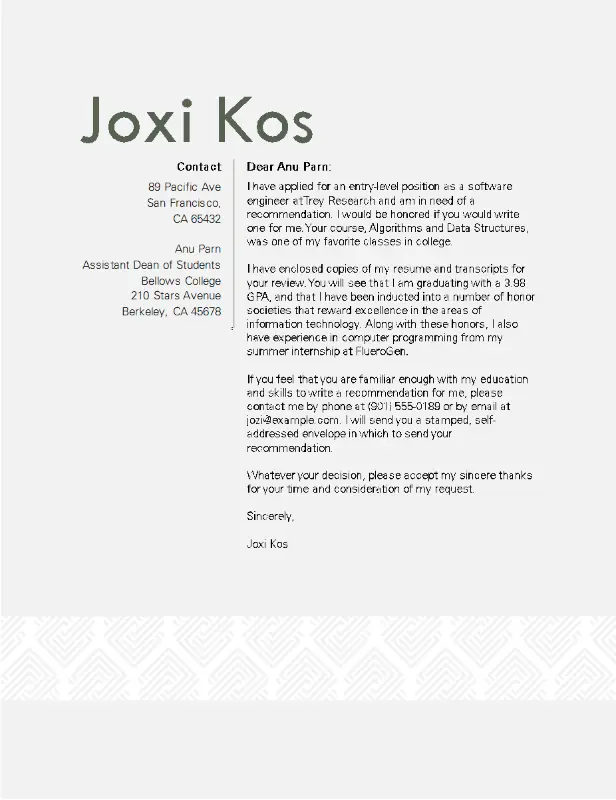
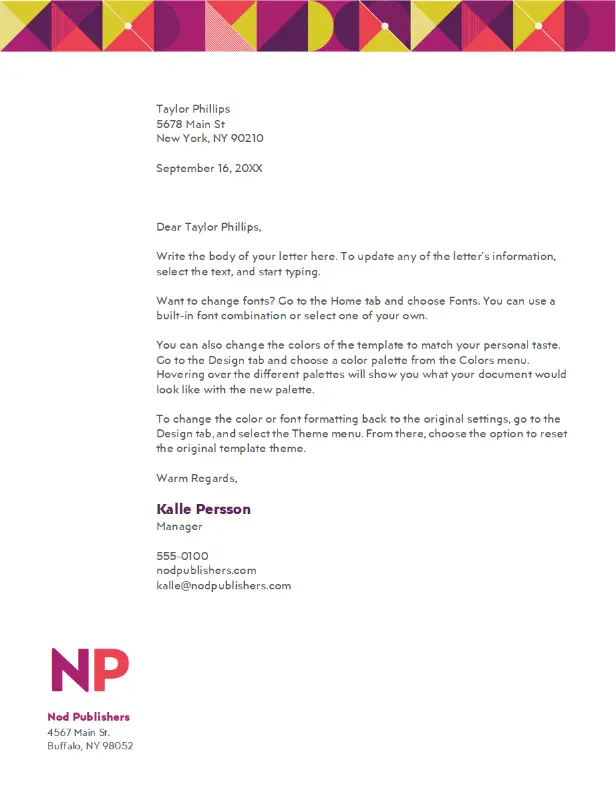
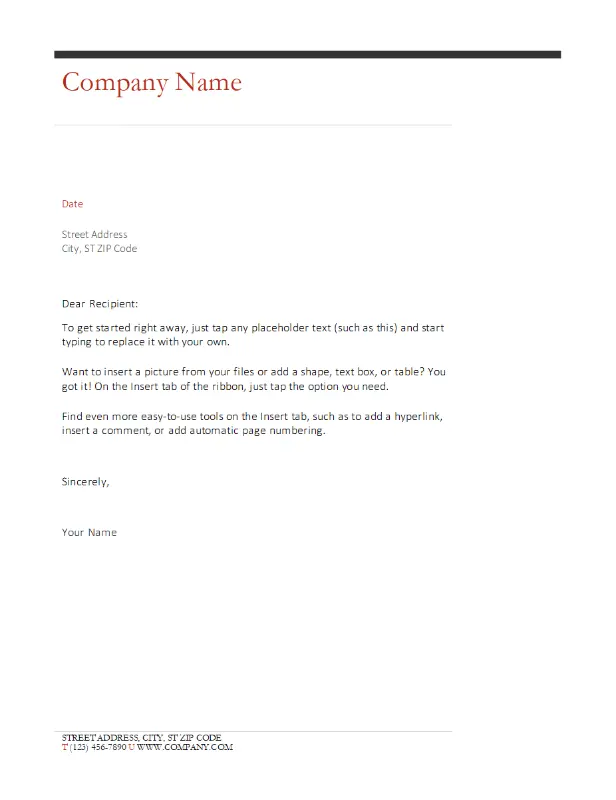
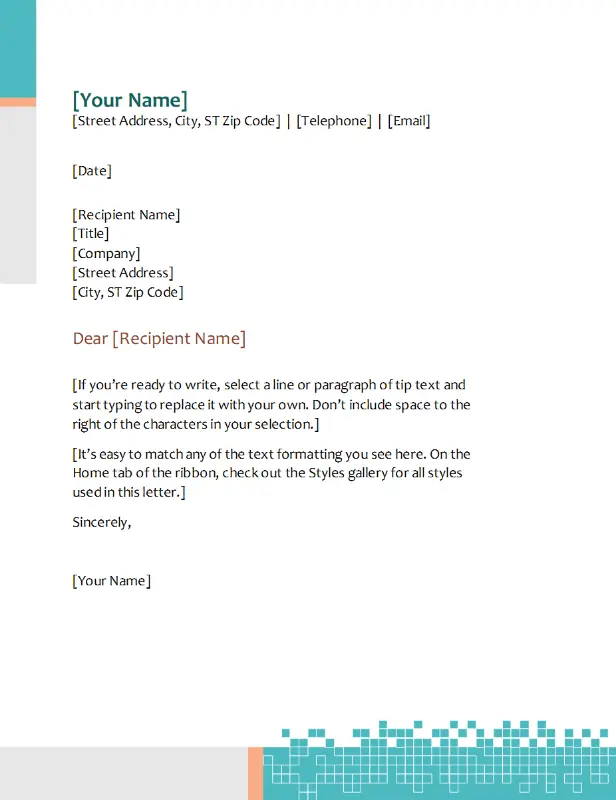
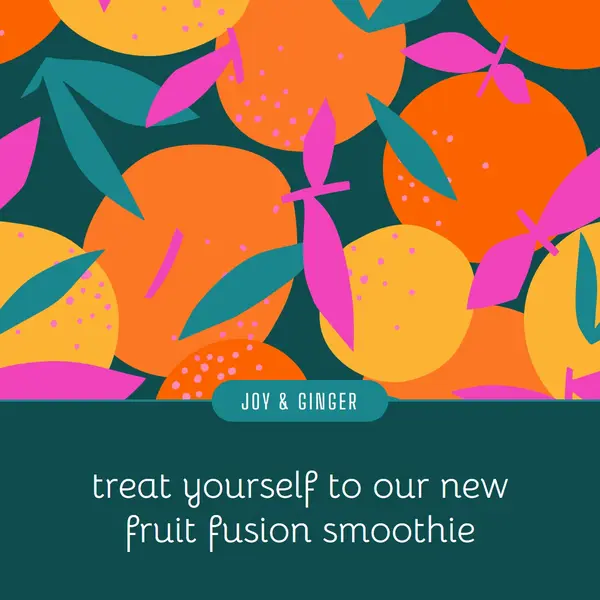
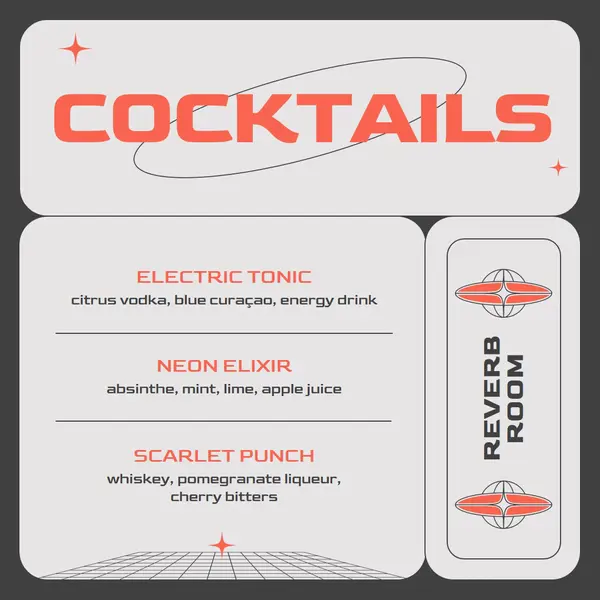
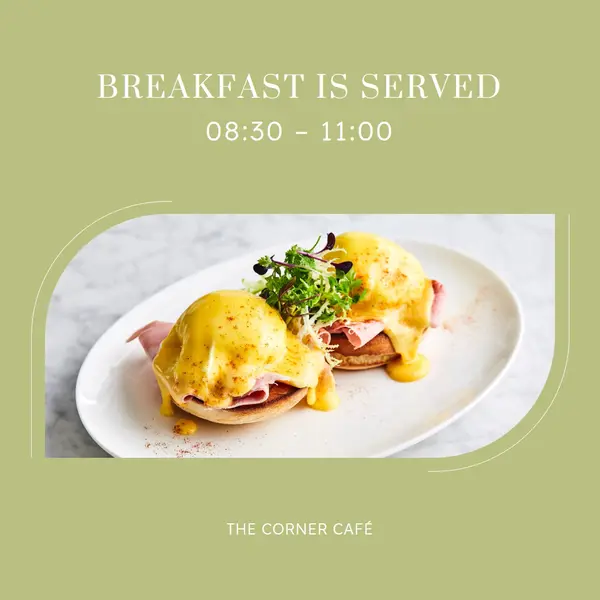
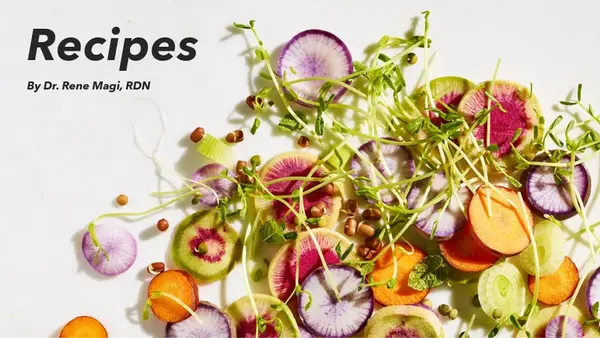
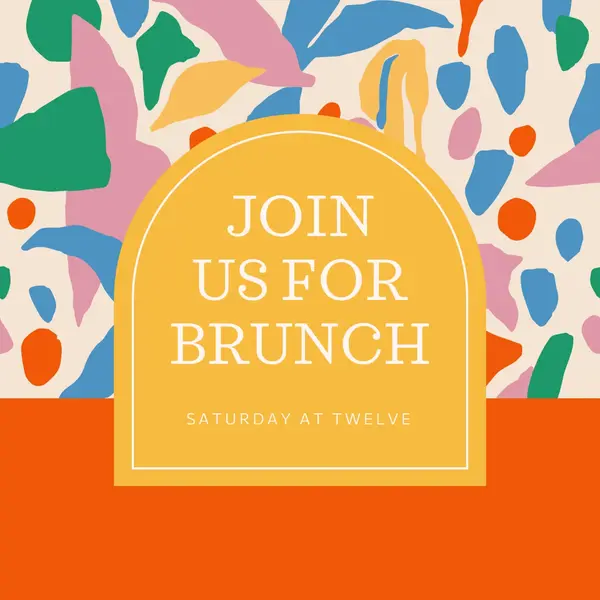
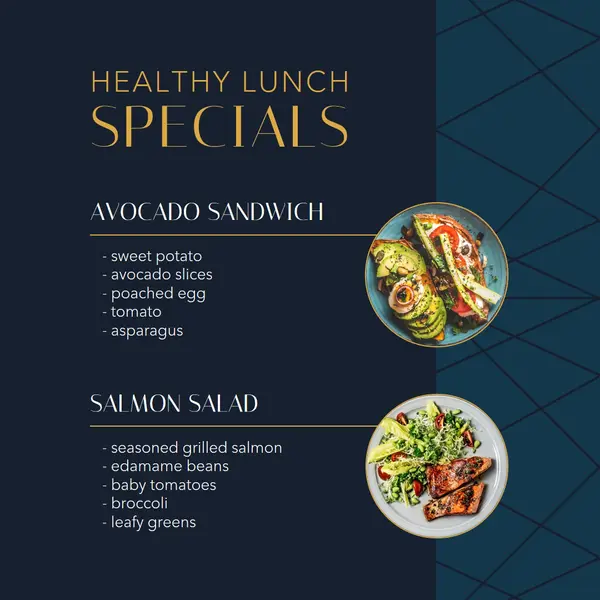
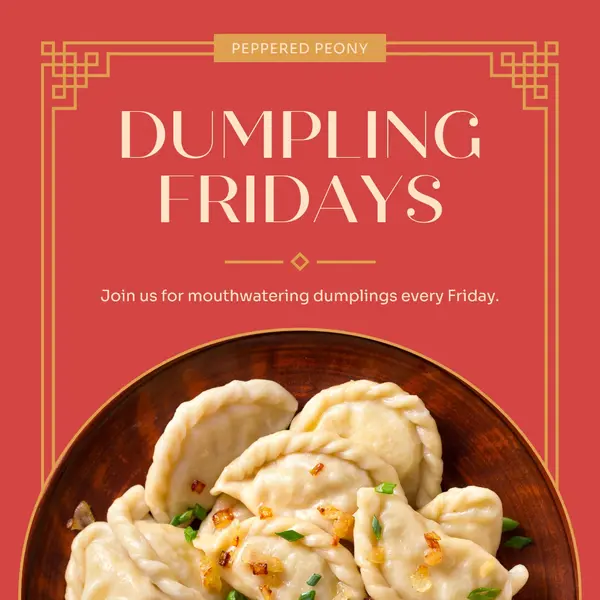
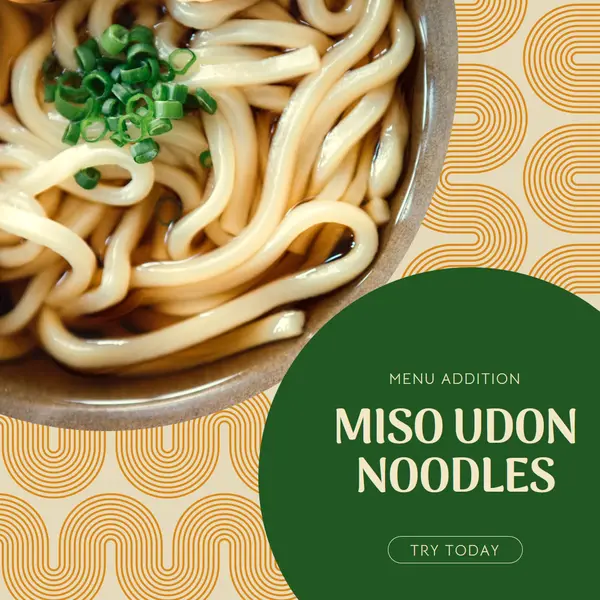
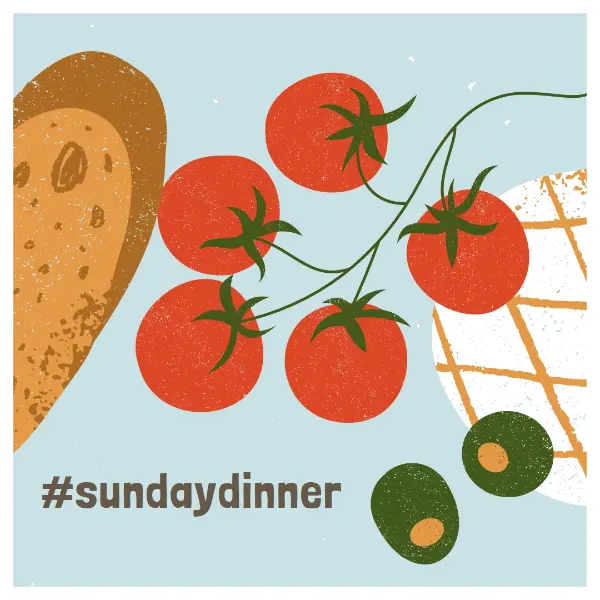
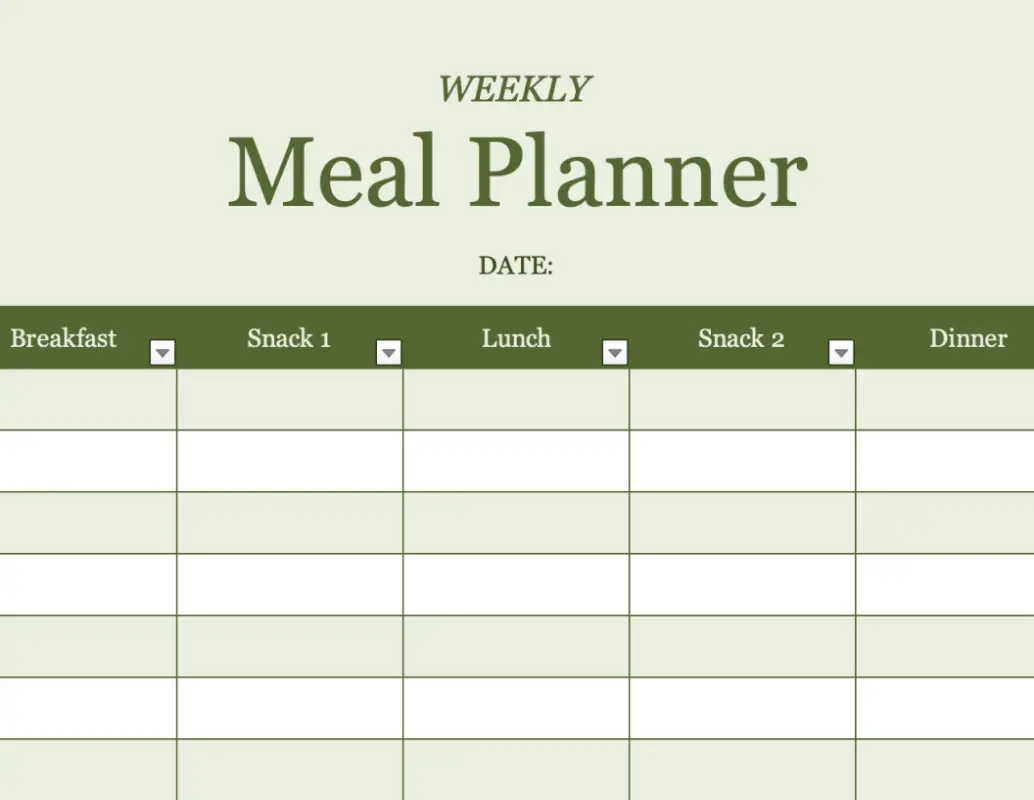
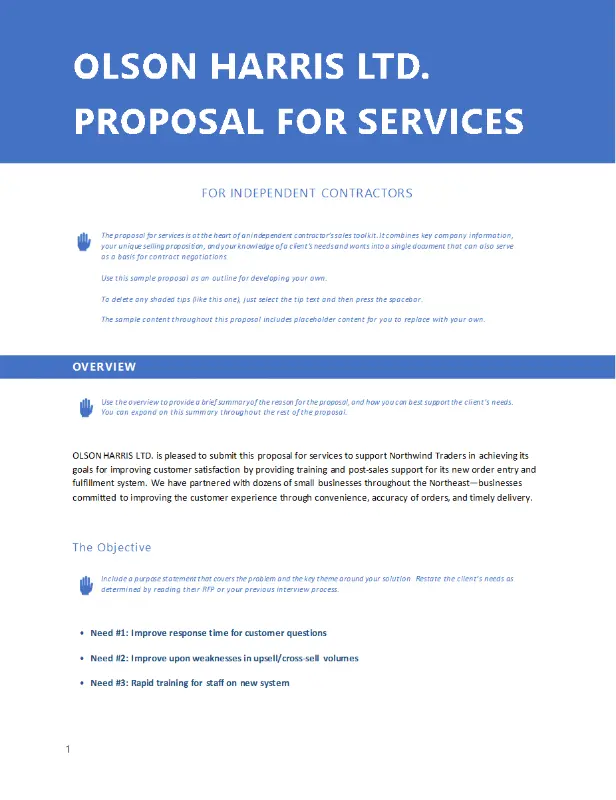
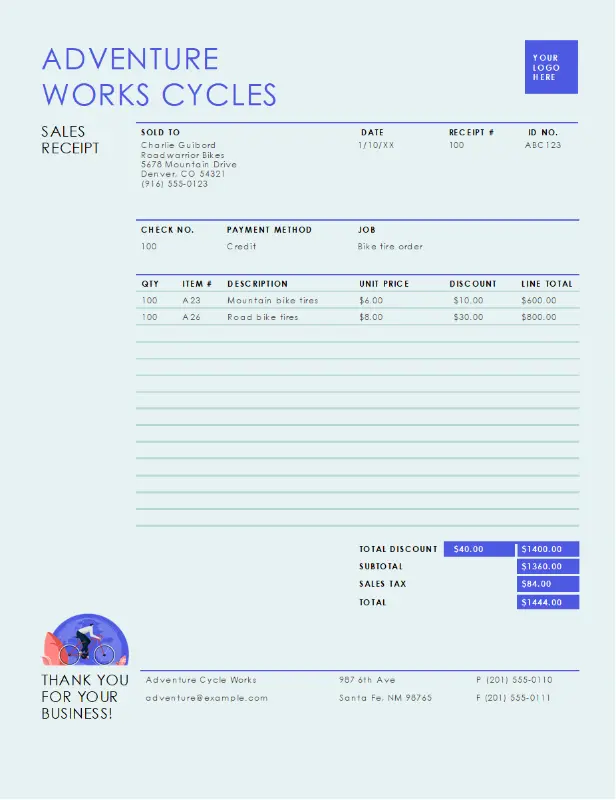
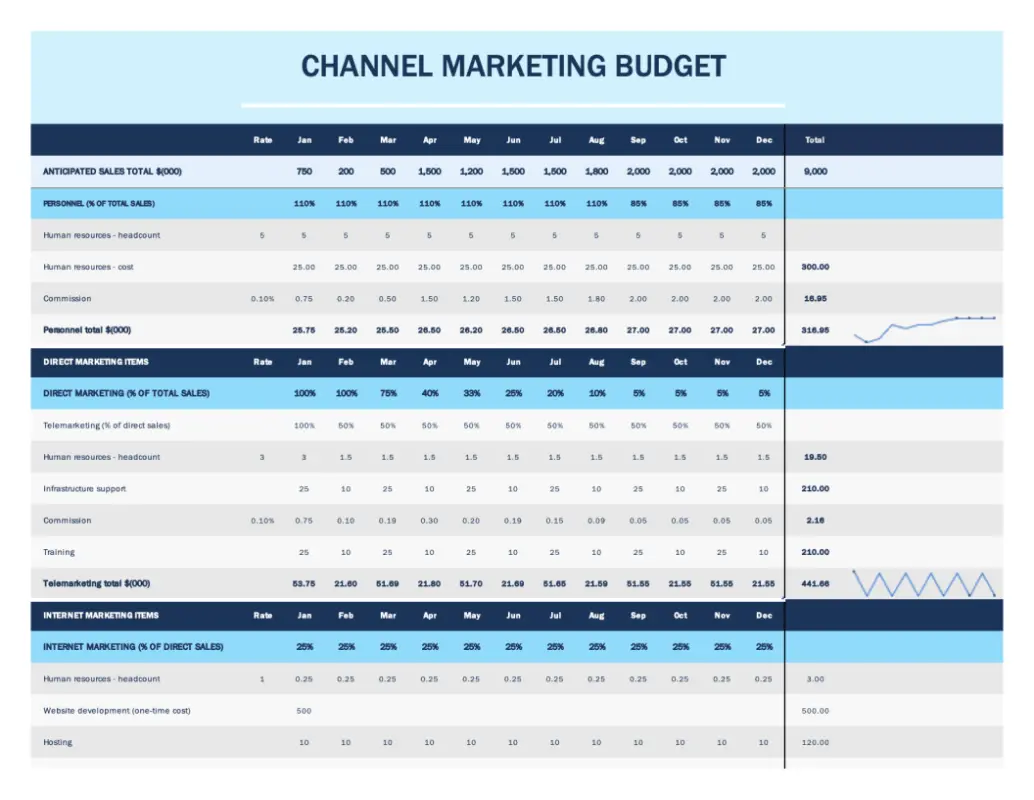
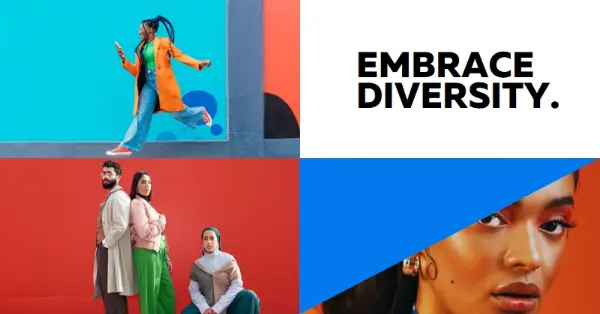
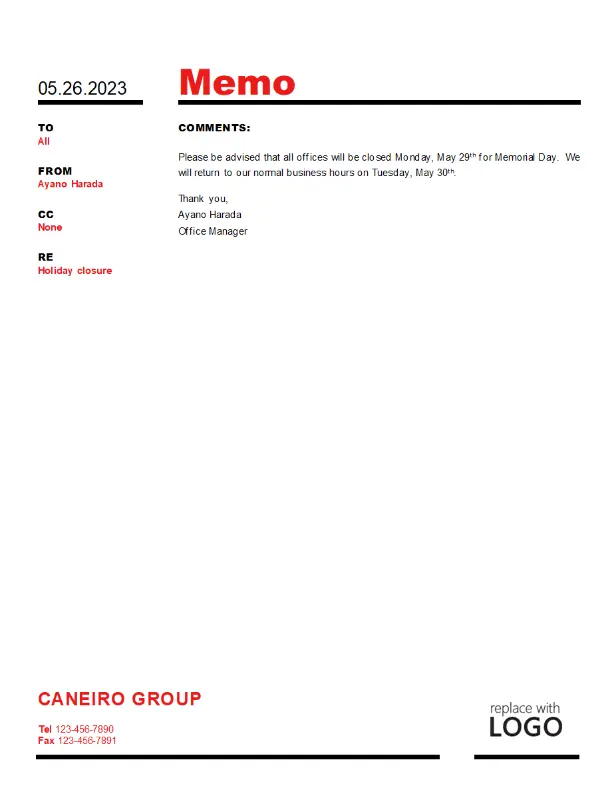
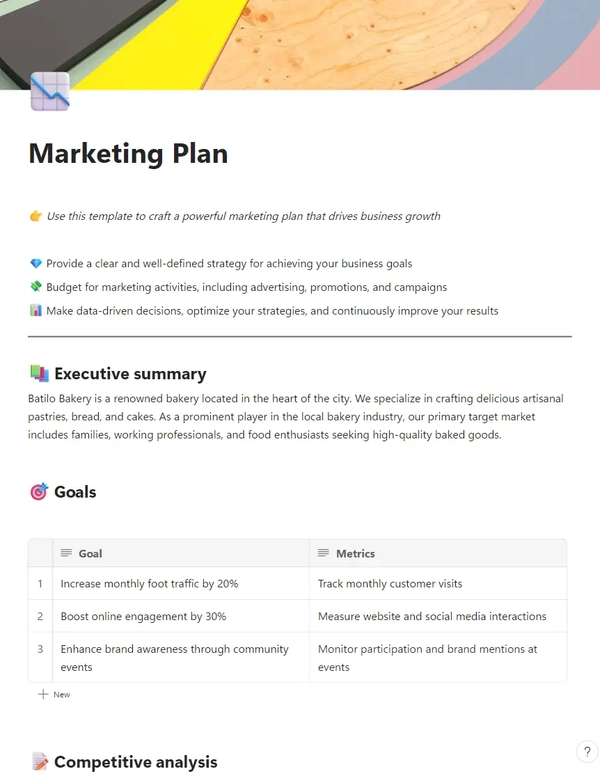
1. Start with the perfect template
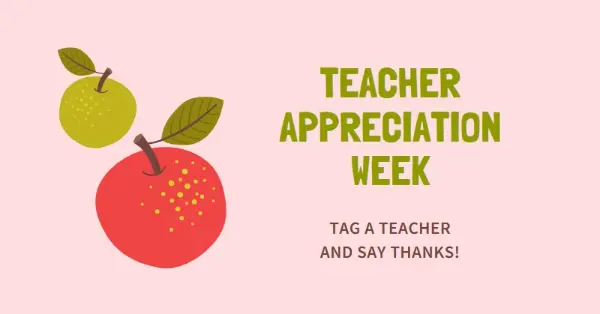
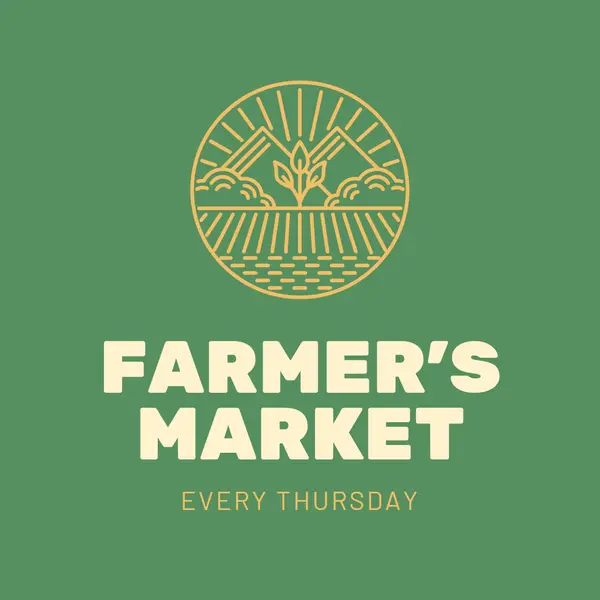
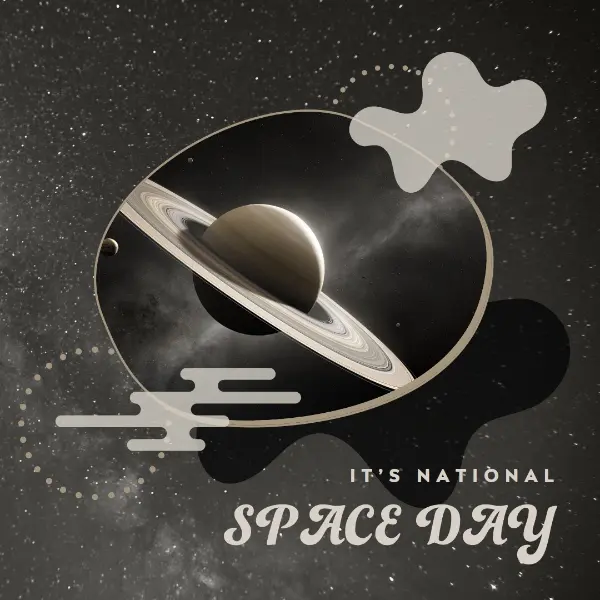
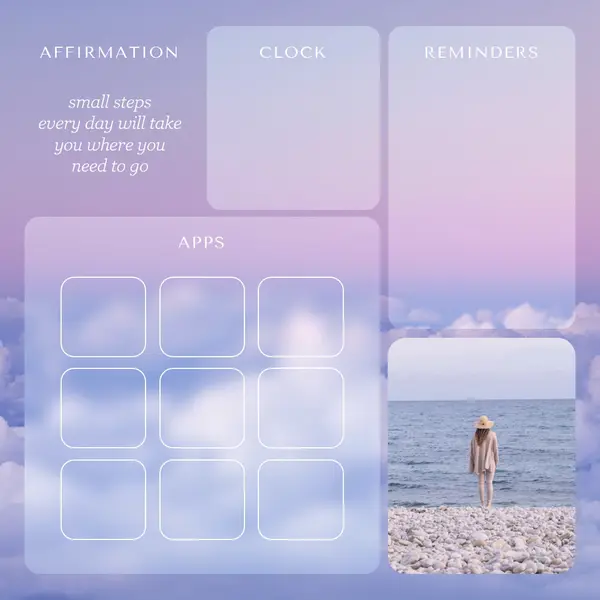
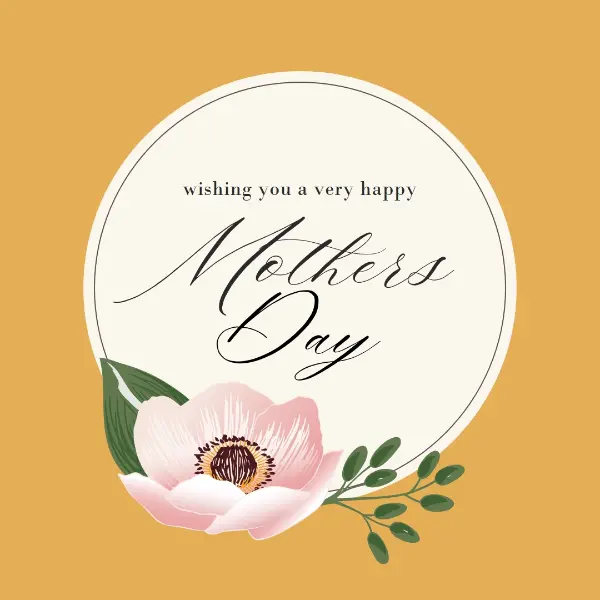
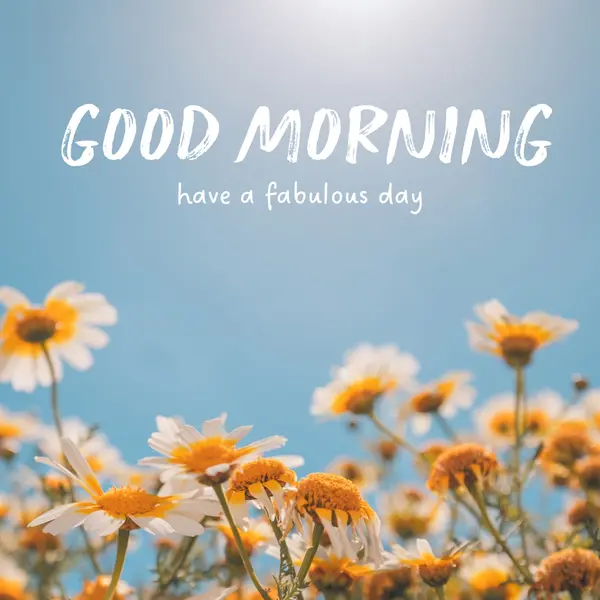
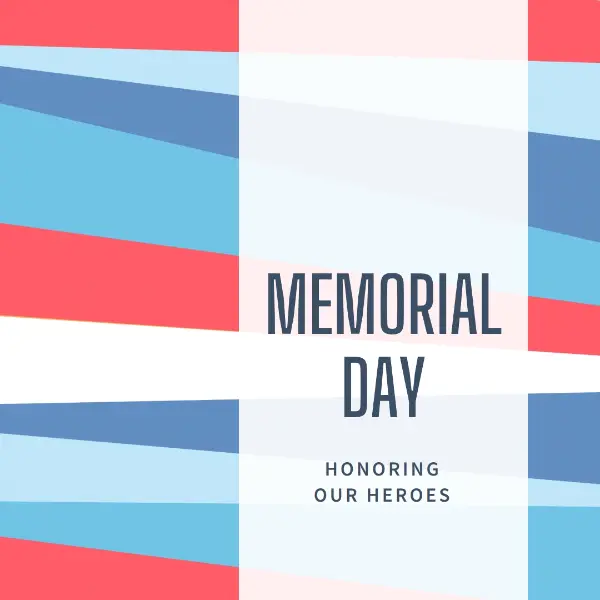
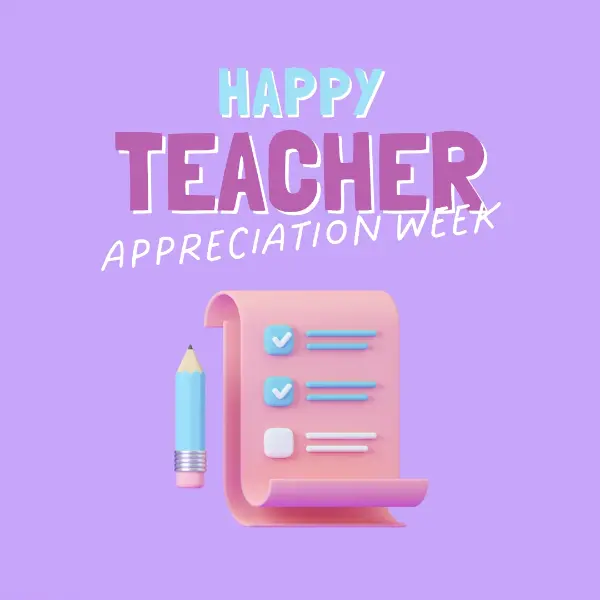
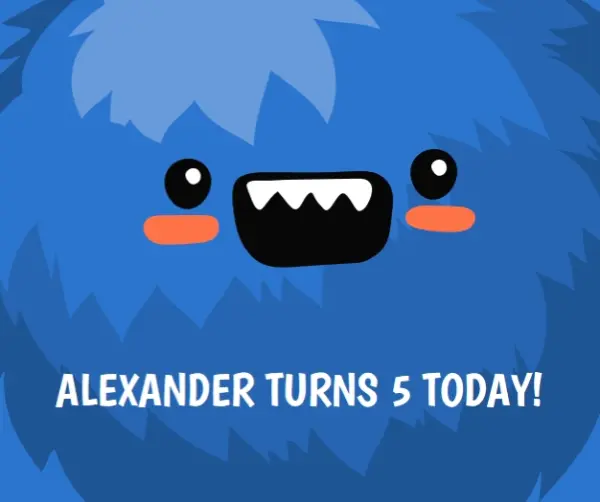
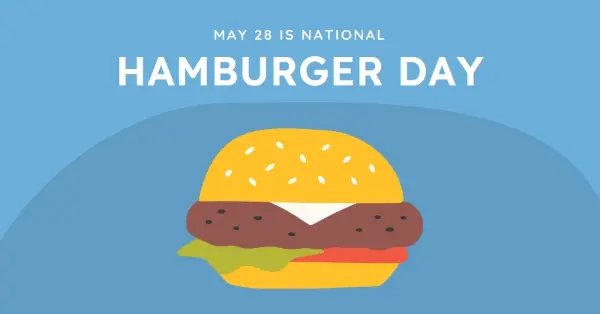
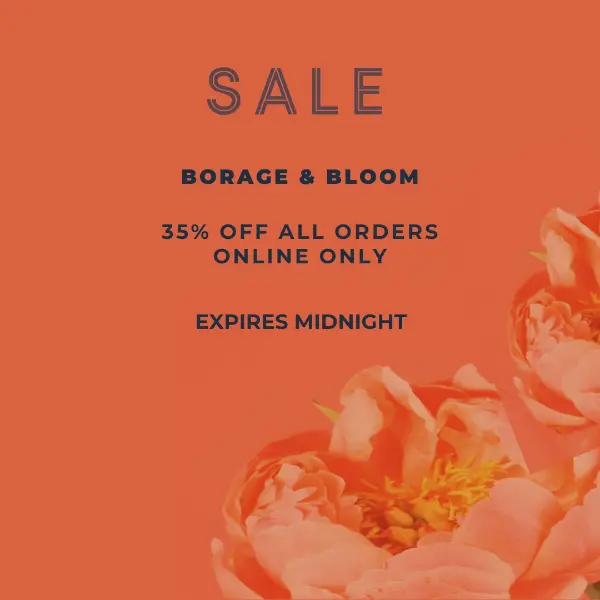
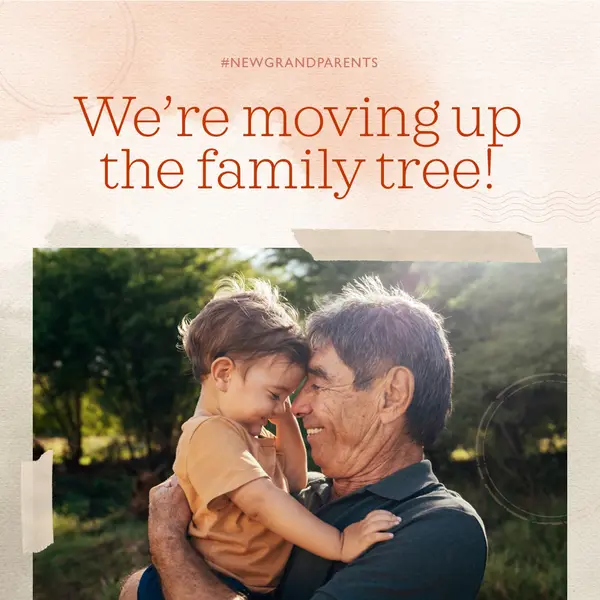
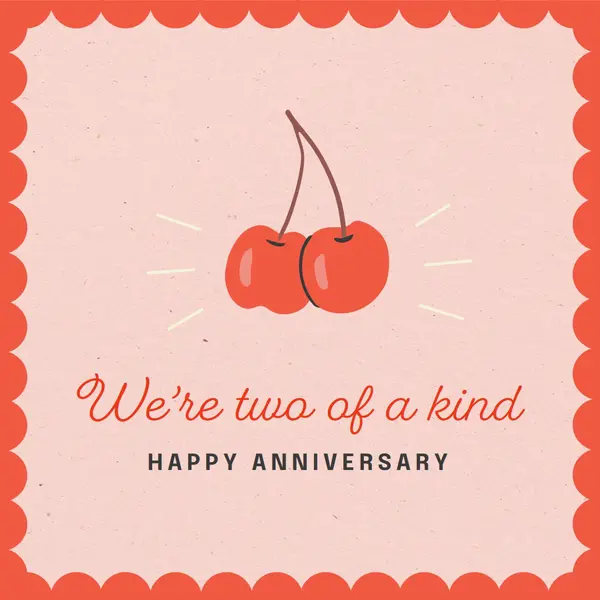
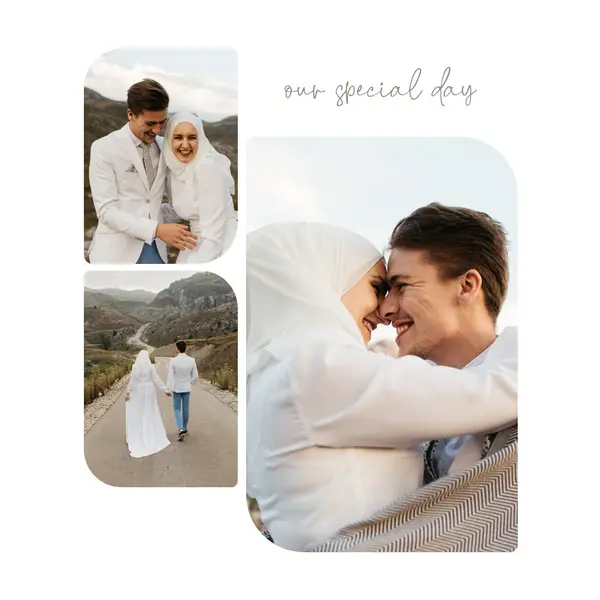
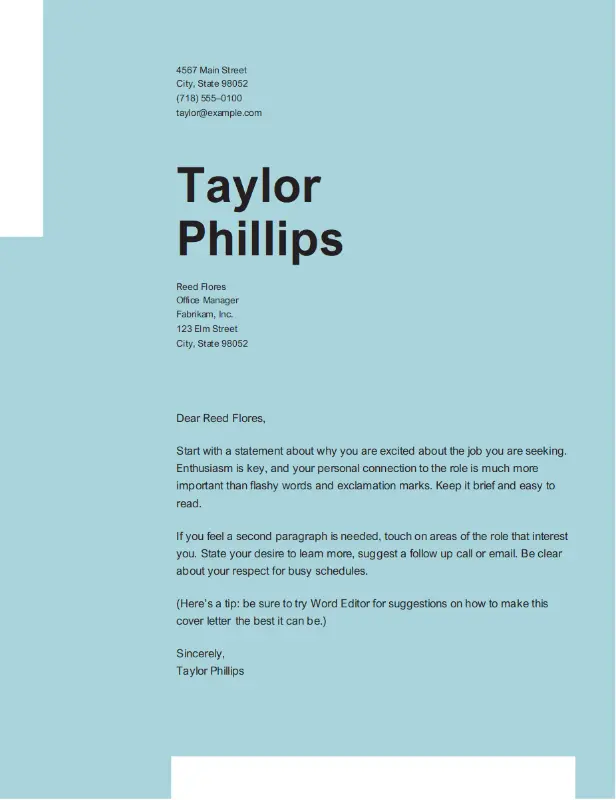
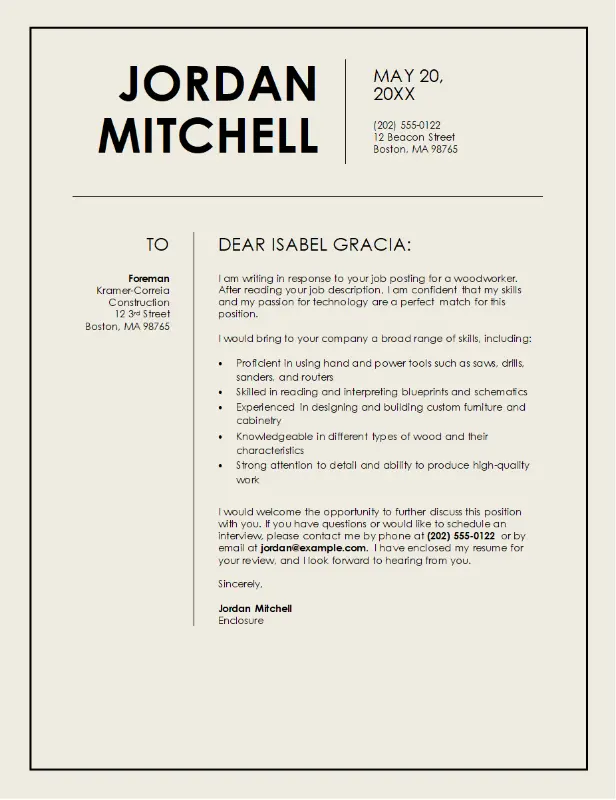
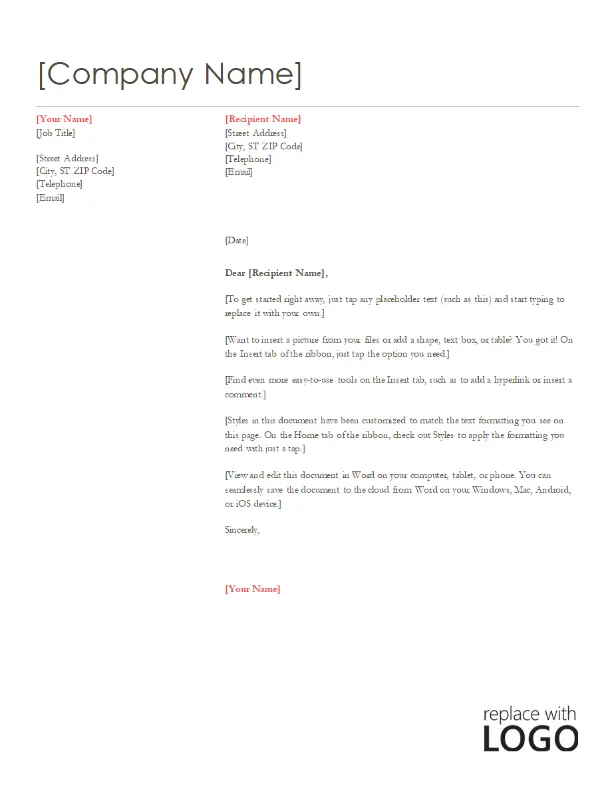
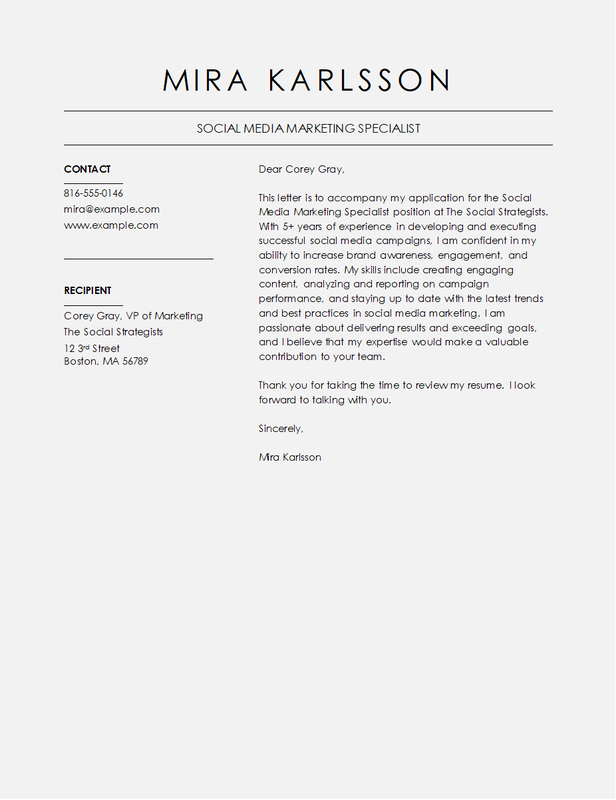
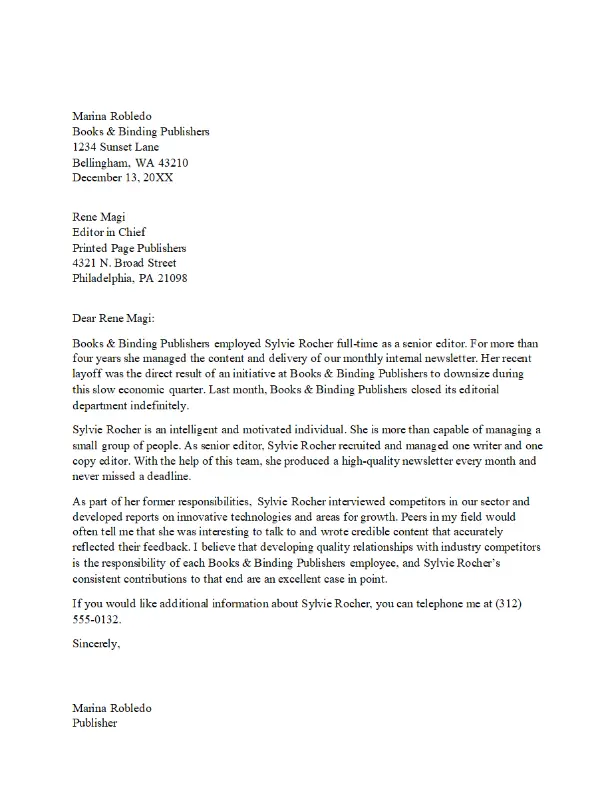
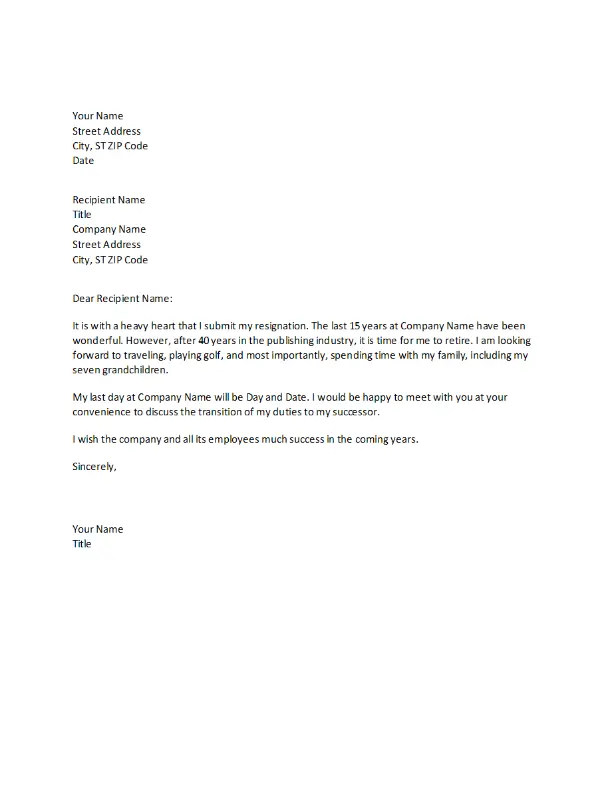
Search for anything—style, topic, image, or color—or look around the catalog for inspiration. You'll find professionally designed templates for whatever you need to create.
