Microsoft PowerPoint is available as an app for desktop (Windows and MacOS), on mobile devices and tablets (iOS and Android™), and online through your browser.
Yes, Microsoft PowerPoint for the web is free for anyone to use online. Sign up or sign in using any email address.
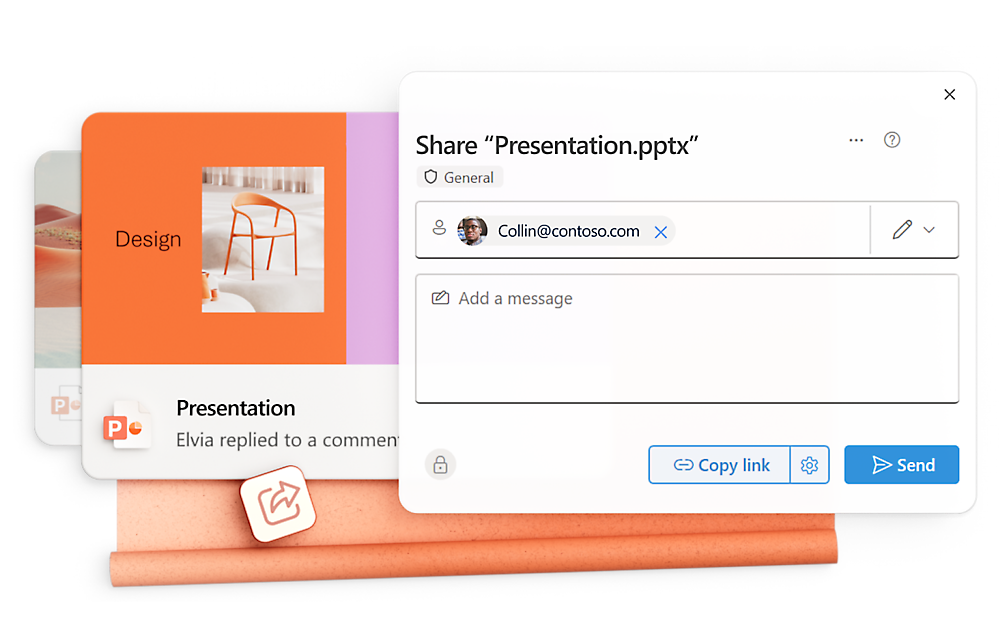
Yes, Microsoft PowerPoint supports real-time collaboration with multiple people.1
Microsoft PowerPoint is available in more than 80 languages.
Copilot features in Outlook apply to accounts with @outlook.com, @hotmail.com, @live.com, or @msn.com email addresses and are available in Outlook.com, Outlook built into Windows, Outlook on Mac, and iOS and Android apps.
Microsoft 365 Personal or Family subscription required; AI features only available to subscription owner and cannot be shared; usage limits apply. Learn more.
Once your paid subscription begins, cancelation policies vary based on your status as a new customer, product, and domain selections on Microsoft. Learn more. Cancel your Microsoft 365 subscription any time by going to the Microsoft 365 admin center. When a subscription is canceled, all associated data will be deleted. Learn more about data retention, deletion, and destruction in Microsoft 365.










?resMode=sharp2&op_usm=1.5,0.65,15,0&qlt=85)






Follow Microsoft 365