
Download and install or reinstall Microsoft 365 or Office 2021 on a PC or Mac
-
Tip:
Get expert advice, dedicated support, and personalized guidance from business specialists. With Business Assist, get help making Microsoft 365 products work for you and everyone in your business.
Ready to install?
Before you begin, make sure your PC or Mac meets the system requirements.
If you already redeemed a product key, you're simply reinstalling the apps, or you know you have an assigned license through work or school, you can skip ahead and go to the section sign in to download and install Microsoft 365 or Office. However, if this is the first time you're installing Microsoft 365 or Office, you may have some steps to do first. Expand the Learn more section below for more info.
|
Guided support in your browser can provide digital solutions for Office problems |
If this is the first time you're installing Microsoft 365 or Office, you may have to complete a set of pre-installation steps or you may need to follow different steps than what's shown below. What you do depends on if your copy of Microsoft 365 or Office is a home or a business product and whether or not you have a product key that you still need to redeem, an account already associated with your product, or a pre-assigned license.
Microsoft 365 or Office for home
If you have a home product and it came with a product key*, before installing for the first time (or sharing it if you have Microsoft 365 Family), you need to redeem your product key first.
Go to office.com/setup and sign in with an existing or new Microsoft account and then enter your product key to redeem it*. Redeeming your key is what adds your Microsoft account to Microsoft 365 and you only have to do this once. If you're renewing a Microsoft 365 subscription with a new product key, use the same Microsoft account you previously associated with your expired version subscription.
Tip: Once this is done, anytime you need to install or reinstall Microsoft 365 or Office you can go straight to the next section, Sign in to download Microsoft 365 or Office and select the tab for help to install on a PC or Mac. Be sure to sign in with the same Microsoft account you used to redeem your product key at office.com/setup.
Microsoft 365 for business
If your business subscription plan includes the desktop version of the Microsoft 365 apps you won't see an option to install it unless someone in your organization assigned a license to you.
Learn how to check this in What Microsoft 365 business product or license do I have? or if you're a Microsoft 365 admin responsible for assigning licenses to people in your organization, see Assign licenses to users.
Once you verify you have a license, anytime you need to install or reinstall Microsoft 365 you can go straight to the section below, Sign in to download Office and select the tab for steps to install on a PC or Mac. You'll sign in with your work or school account for these versions of Microsoft 365.
*If you don't have a product key or an account
Some versions of Microsoft 365 such as Office Professional Plus 2021, Office Standard 2021, or a stand-alone app such as Word 2021 or Project 2021 don't have an associated Microsoft account, or work or school account.
The steps to install these versions can be different depending if you got Microsoft 365 through one of the following ways:
Workplace Discount Program:
You bought Microsoft 365 for personal use through your company benefit program and have a product key, see Install Office through the Workplace Discount Program.
Volume license versions:
IT departments might use a different method when installing Microsoft 365 for people in their organization. Talk to your IT department for install help.
Third-party seller:
You bought Microsoft 365 from a third-party and you're having problems with the product key.
Sign in to download and install Microsoft 365 or Office
Tip: Get tech expertise with Business Assist. Connect with our small business advisors for help making Microsoft 365 products work for you and everyone in your business. Learn more.
Sign in to download Microsoft 365 or Office
-
Go to www.office.com and if you're not already signed in, select Sign in.
Note: If you're using Microsoft 365 operated by 21 Vianet, sign in with your work or school account to login.partner.microsoftonline.cn.
If you're using Microsoft 365 Germany, sign in with your work or school account to portal.office.de. -
Sign in with the account you associated with this version of Microsoft 365. This account can be a Microsoft account, or work or school account. I forgot the account I use with Office
-
After signing in, follow the steps that match the type of account you signed in with.
You signed in with a Microsoft account

-
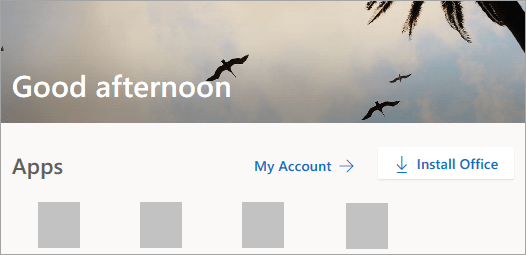
From the Microsoft 365 home page select Install apps.
-
Select Install (or depending on your version, Install apps>).
You signed in with a work or school account
-
From the home page select Install apps (If you set a different start page, go to aka.ms/office-install.)
Notes:
-
For Microsoft 365 operated by 21 Vianet go to login.partner.microsoftonline.cn/account.
-
For Microsoft 365 Germany go to portal.office.de/account.
-
-
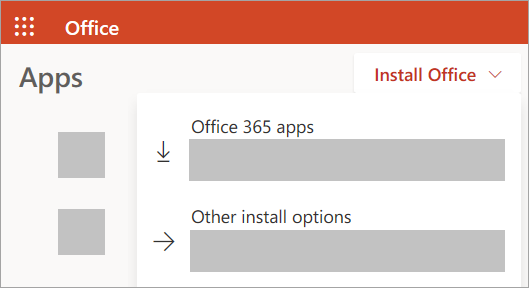
Select Microsoft 365 apps to begin the installation.
The 64-bit version is installed by default unless Microsoft 365 or Office detects you already have a 32-bit version of Microsoft 365 or Office (or a stand-alone app such as Project or Visio) installed. In this case, the 32-bit version of Microsoft 365 or Office will be installed instead.
To change from a 32-bit version to a 64-bit version or vice versa, you need to uninstall Microsoft 365 first (including any stand-alone Microsoft 365 apps you have such as Project of Visio). Once the uninstall is complete, sign in again to www.office.com and select Other install options, choose the language and version you want (64 or 32-bit), and then select Install. (See Install Visio or Install Project if you need to reinstall those stand-alone apps.)
Notes:
-
For Microsoft 365 operated by 21 Vianet go to login.partner.microsoftonline.cn.
-
For Microsoft 365 Germany go to portal.office.de.
-
-
This completes the download of Microsoft 365 to your device. To complete the installation, follow the prompts in the "Install Microsoft 365" section below.
Tip: Don't see an install option after signing in? There could be an issue with your account. Select Need help? from above and review the solutions under Account questions.
Install Office
-
Depending on your browser, select Run (in Microsoft Edge or Internet Explorer), Setup (in Chrome), or Save File (in Firefox).
If you see the User Account Control prompt that says, Do you want to allow this app to make changes to your device? select Yes.
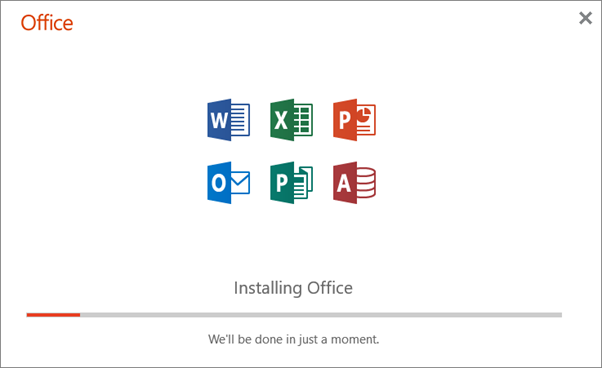
The install begins.
-
Your install is finished when you see the phrase, "You're all set! Office is installed now" and an animation plays to show you where to find Microsoft 365 applications on your computer. Select Close.

Installation or sign in issues?
Tip: You can download and install the Microsoft Support and Recovery Assistant to help with Microsoft 365 installation issues on a PC. For more information, see About the Microsoft Support and Recovery Assistant.
If you're having an installation issue such as Microsoft 365 taking long to install, try Need help? for a list of common issues.
Activate Microsoft 365 or Office
-
To open an app, select the Start button (lower-left corner of your screen) and type the name of an app, like Word.
If you have Windows 8.1 or 8.0, type the name of an Microsoft 365 app on the Start screen. Can't find your Office apps?
-
To open the app, select its icon in the search results.
-
When the app opens, accept the license agreement. Microsoft 365 or Office is activated and ready to use.
Note: The Activation Wizard appears if Microsoft 365 or Office has trouble activating. Complete the steps in the wizard to finish activation.
Sign in and install Microsoft 365 or Office
-
Go to www.office.com and if you're not already signed in, select Sign in.
Note: If you're using Microsoft 365 operated by 21 Vianet, sign in with your work or school account to login.partner.microsoftonline.cn.
If you're using Microsoft 365 Germany, sign in with your work or school account to portal.office.de. -
Sign in with the account you associated with this version of Microsoft 365 or Office. This account can be a Microsoft account, or work or school account. I forgot the account I use with Office
-
After signing in, follow the steps that match the type of account you signed in with.
You signed in with a Microsoft account
-
From the Microsoft 365 home page select Install Office to start the download.
You signed in with a work or school account
-
From the Microsoft 365 home page select Install Office (if you set a different start page, go to aka.ms/office-install).
Notes:
-
For Microsoft 365 operated by 21 Vianet go to login.partner.microsoftonline.cn/account.
-
For Microsoft 365 Germany go to portal.office.de/account.
-
-
Select Office 365 apps to begin the download.
Note: Don't see an install option after signing in? There could be an issue with your account. Select Need help? from above and review the issues listed in the section Account questions.
-
-
Follow the instructions below to complete installing your Microsoft 365 apps.
Install Microsoft 365 or Office
-
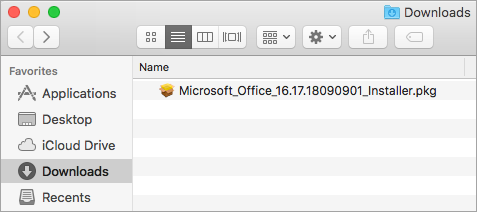
Once the download has completed, open Finder, go to Downloads, and double-click Microsoft Office installer.pkg file (the name might vary slightly).
Tip: If you see an error that says the Microsoft Office installer.pkg can't be opened because it is from an unidentified developer, wait 10 seconds and move the downloaded file to your desktop. Hold Control + click the file to launch the installer.
-
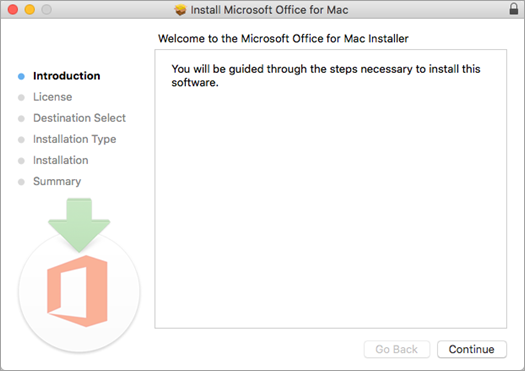
On the first installation screen, select Continue to begin the installation process.
-
Review the software license agreement, and then click Continue.
-
Select Agree to agree to the terms of the software license agreement.
-
Choose how you want to install Microsoft 365 and click Continue.
-
Review the disk space requirements or change your install location, and then click Install.
Note: If you want to only install specific Microsoft 365 apps and not the entire suite, click the Customize button and uncheck the programs you don't want.
-
Enter your Mac login password, if prompted, and then click Install Software. (This is the password that you use to log in to your Mac.)

-
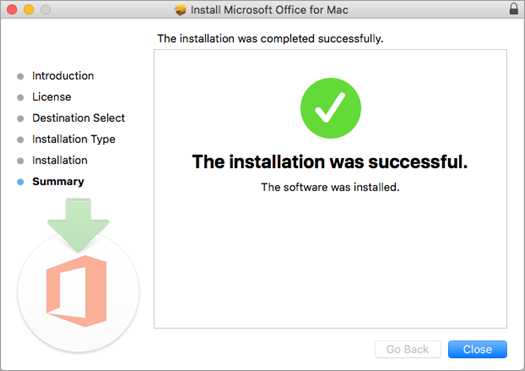
The software begins to install. Click Close when the installation is finished. If Microsoft 365 installation fails, see What to try if you can't install or activate Office for Mac.
Launch an app and start the activation process
-
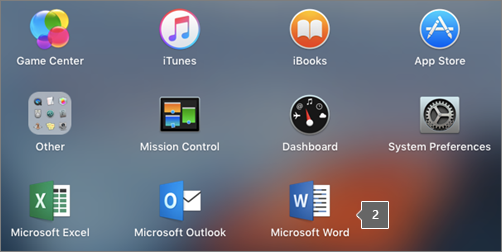
Click the Launchpad icon in the Dock to display all of your apps.

-
Click the Microsoft Word icon (or another Microsoft 365 or Office icon) in the Launchpad.
-
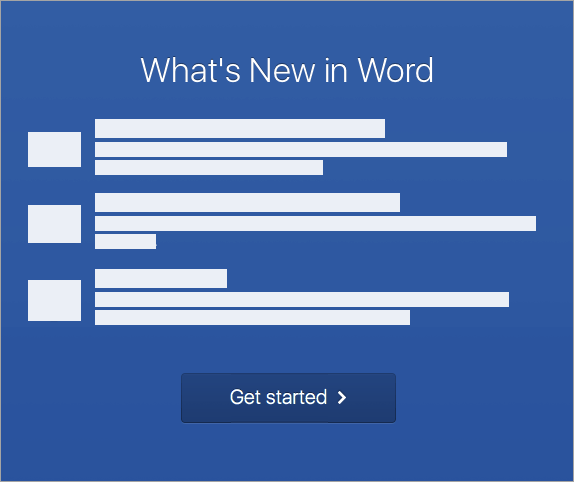
The What's New window opens automatically when you launch Word. Click Get Started to start activating. If you need help activating Microsoft 365 or Office, see Activate Microsoft 365 or Office for Mac. If activation fails, see What to try if you can't install or activate Microsoft 365 or Office for Mac.
Installation notes
Installation notes
How do I pin the app icons to the dock?
-
Go to Finder > Applications and open the Office app you want.
-
In the Dock, Control+click or right-click the app icon and choose Options > Keep in Dock.
Can I install Microsoft 365 on my iPhone or iPad?
Yes, see Install and set up Microsoft 365 apps on an iPhone or iPad and set up email on an iOS device (iPhone or iPad).
Sign in or installation FAQ
The following are a few of the more common questions or issues when trying to install Microsoft 365 or Office.
Tip: Don't see your issue listed? Try Troubleshoot installing Microsoft 365 or Office for additional issues and their possible solutions.
Account questions:
Before you can install Microsoft 365 or Office 2021 you need to associate it with a Microsoft account, or work or school account.
If you have an home product and bought Microsoft 365 or Office at a retail store or online store, but don't have a Microsoft account, it's possible you haven't redeemed your product key yet (if you got one), or you missed the step for linking your recent purchase with an account. Do the following to link an account with Microsoft 365 or Office.
For an Office for home product, go to office.com/setup and create a new Microsoft account or sign in with an existing one, then follow the remaining steps on that page such as entering your product key (if you have one). Your account is successfully associated with Microsoft 365 or Office when you see the page, My Office Account followed by your Microsoft account email address, and a button to install the apps. Select the PC or Mac tabs above to help you with the rest of the install process.

If the Microsoft account or work or school account isn't working, see I forgot the username or password for the account I use with Office.
After signing in with your work or school account you don't see an option to install the desktop applications on the Microsoft 365 home page, go directly to the Microsoft 365 Software page instead. Select the language and bit-version you want (PC users can choose between 32-bit and 64-bit), and then click Install. See Step 2 and 3 on the PC or Mac tabs above to help you with the rest of the install process.
Notes:
-
If your organization uses Microsoft 365 operated by 21Vianet in China, sign in to the Microsoft 365 Software page at https://portal.partner.microsoftonline.cn/OLS/MySoftware.aspx.
-
If your organization uses Microsoft 365 Germany, sign in to the Microsoft 365 Software page at https://portal.office.de/OLS/MySoftware.aspx.
If you still don't see an option to install Microsoft 365 on the Microsoft 365 Software page, it's possible your admin hasn't assigned a license to you. Find out if you have a license to install Microsoft 365.
If you're a student or teacher and your institution didn't give you a license, find out if you're eligible to Get Microsoft 365 for free.
If you're trying to sign in with your work or school account to www.office.com and your sign in is blocked, it likely means your Microsoft 365 administrator set up a security policy that's preventing you from signing in to that location.
To install Microsoft 365, try signing in directly to the Microsoft 365 Software page instead. Select the language and bit-version you want (PC users can choose between 32-bit and 64-bit), and then click Install. See Steps 2 and 3 on the PC or Mac tabs above to help you with the rest of the install process.
Notes:
-
If your organization uses Microsoft 365 operated by 21Vianet in China, sign in to the Microsoft 365 Software page at https://portal.partner.microsoftonline.cn/OLS/MySoftware.aspx.
-
If your organization uses Microsoft 365 Germany, sign in to the Microsoft 365 Software page at https://portal.office.de/OLS/MySoftware.aspx.
If you're still not able to sign in, contact your administrator.
Product key, purchase, and installing older versions of Microsoft 365:
Not all versions of Microsoft 365 include a key, but if yours did, you need to redeem it before you can install Microsoft 365. Go to office.com/setup and sign in with an existing Microsoft account or create a new one, then enter your product key. Follow the remaining prompts to finish linking your Microsoft account with this version of Microsoft 365.
No product key or not sure if you need one? See Using product keys with Office.
The steps in this topic assume you have Microsoft 365 or Office 2021 and you're ready to install or reinstall it. Don't have the latest version yet?
Learn more about the differences between Microsoft 365 and non-subscription versions.
Installation help for older versions of Office:
Install questions or errors during install
For Microsoft 365 subscriptions only: You can install Microsoft 365 on all your devices and be signed in to five at the same time. To learn more, see How sign in works in Microsoft 365.
If you have Microsoft 365 Family, you can also share your Microsoft 365 Family subscription with up to five family members or other people. Each person can install Microsoft 365 on all their devices and be signed in to five at the same time.
For a one-time purchase of Office such as Office Home & Student, Office Home & Business, or Office Professional: You can install these non-subscription versions of Office on only one computer. However, you may transfer Office to another computer that belongs to you if you experience a hardware failure, or you buy a new computer. For more information, see the Microsoft License Terms.
When installing Office on a PC, you must be an administrator on the PC computer where you want to install Office. If you're not sure, see Check if you have local admin rights to install Office.
If you bought a stand-alone version of an Office app, for example Visio or Word, in most cases you install this app in the same way you install the Microsoft 365 or Office suite, by signing in to www.office.com with your Microsoft account, or work or school account and selecting Install for your stand-alone product.
If you have a subscription to Project Online Professional, Project Online Premium, or Visio Pro, see Install Project, or Install Visio for the steps to install the apps that are part of those subscriptions.
The Microsoft 365 or Office apps are available to install on your iPhone and iPad, Android device, or Windows phone and tablet. See Set up Microsoft 365 apps and email on a mobile device.
If Microsoft 365 or Office seems to be taking a very long time to install, this may be caused by problems with your internet connection, firewall, or anti-virus software. For possible solutions, see Microsoft 365 or Office is taking long to install.
Microsoft 365 can also take long to install because of a slow internet connection (such as a dial-up connection). If you don't have a good connection, install Microsoft 365 using the Use the offline installer.
Microsoft 365 or Office won't install: Your computer must be running a supported operating system to install Microsoft 365 or Office. You can find a list of which systems are supported on the system requirements page. For example, your install won't be successful if you're trying to install Microsoft 365 or Office on a computer running Windows Vista or Windows XP operating system. If your computer can't install the full desktop version of Microsoft 365 or Office, try the free Microsoft 365 apps from your browser.
I received an error message: If you got an error message while trying to install Microsoft 365 or Office and it has a Learn More link, select it to get information for how to troubleshoot that particular error. If there wasn't a link, see Troubleshoot installing Microsoft 365 or Office.
I received an unsupported operating system message: If you got an unsupported operating system error message you may be trying to install Microsoft 365 or Office on an unsupported device such as installing the Mac version of Microsoft 365 Office on a PC or vice versa, or trying to install Microsoft 365 or Office on a Chromebook or other mobile device. See Unsupported operating system error when installing Office or Set up Office apps and email on a mobile device.
Help with specific applications, and help for Microsoft 365 admins:
For information about how to download the desktop version of OneNote 2016 see OneNote is missing after installing Office 2019 or Microsoft 365.
If Microsoft 365 or Office is installed, but you need help with basics, or want to learn how to do a specific task such as print a document, set up an account in Outlook, or use VLOOKUP in Excel, go to the top of this page (if viewing in a web browser) and select Products.
You can also search for what you're looking for using the search bar in the upper-right corner.
If you're the Microsoft 365 admin of an Office for business plan, users in your organization can only install Microsoft 365 using the steps in this topic as long as your plan includes the desktop version of Microsoft 365, and you've assigned the user a license and given them permission to install Microsoft 365 (Manage software download settings in Microsoft 365).
For information about how to assign licenses, see Assign licenses to users in Microsoft 365 for business.
If you've run out of licenses and need to purchase more, see Buy licenses for your Microsoft 365 for business subscription.
Contact Microsoft
If you weren't able to resolve your problem, try contacting Microsoft support.
Tip: If you're a small business owner looking for more information on how to get Microsoft 365 set up, visit Small business help & learning.
Recommended articles
Download and install or reinstall Office 2019, Office 2016, or Office 2013
How to use the PC Health Check app
I forgot the account I use with Office
Change from a 32-bit version to a 64-bit version or vice versa


Need more help?
Want more options?
Explore subscription benefits, browse training courses, learn how to secure your device, and more.




Communities help you ask and answer questions, give feedback, and hear from experts with rich knowledge.



Find solutions to common problems or get help from a support agent.
